 (12 votes, average: 5.00 out of 5)
 Loading... (12 votes, average: 5.00 out of 5)Loading...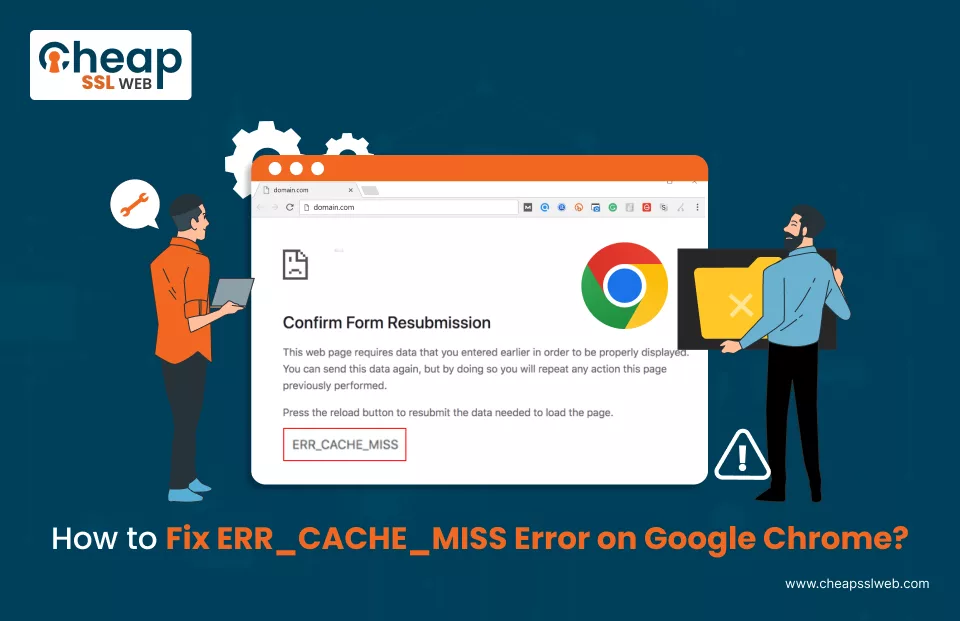
Hello everyone, if you have been using Google Chrome for a long time you will ever encounter the error ERR_CACHE_MISS at least one time. In this post, I will explain to you what is ERR_CACHE_MISS, why this occurs, and how to fix this error. Just read this 5-minute blog after that you have to not go anywhere else.
The things I will explain to you not only work in Google Chrome but also other Chromium-based browsers.
This is a caching caching-related issue and it appears when a website fails to retrieve cached data correctly. Which will lead to the Chrome browser to display this error message.
The ERR_CACHE_MISS error is a common type of error in Google Chrome and other Chromium browsers, it appears due to a caching-related issue. It is a kind of Google Chrome feature that will prevent sending Duplicate data mistakenly to Web Forms or web requests.
When we visit a website or web application the server generates Cache data at different levels like in web browser, DNS cache and server-side cache. This Cache data will help users to speed up the performance and give a better user experience.
The ERR_CACHE_MISS error occurs due to several reasons, such as:
Here are the 9 methods that will fix the ERR_CACHE_MISS error, all the methods are tested, you have to try it just one by one or based on your situation. The solution is categorised by Operating System (OS) so if you are Windows then follow Windows instructions and if you are a Mac user try that instruction.
Most fixes also work on other Chromium-based browsers (Microsoft Edge, Brave) so you can try it also.
One of the simplest methods to fix the error ‘ERR_CACHE_MISS’ error is just refresh to your web page in Chrome Browser. The error can sometimes occur due to network connection problems, such as a brief disconnection while the page is loading.
The error can sometimes occur due to network connection problems, such as your network connection being disconnected for just a few seconds while the page is loading.
To fix this follow the below instructions:
If refreshing the page doesn’t resolve the issue, try restarting Chrome by typing chrome://restart in the address bar. This will reopen all your previously opened windows and tabs, ensuring no information is lost.
Another way is just to close the Chrome Browser and restart it.
The outdated Chrome web browser also causes the ERR_CACHE_MISS error. Just update your Chrome web browser.
Follow these steps, and update your browser:
Browser extension has the power to interact and change the functionality of web browsers such as Modifying DOM, changing web page looks, modifying web requests and much more. The Corrupted or outdated extensions can also cause the CACHE MISS error.
Methods to figure out if this error is due to Browser extension and solution to fix this error.
Just disable all the browser extensions that are installed on your Chrome web browser. Now check the page to see if the error is resolved.
Corrupted, outdated, and too much browser cache data can also cause this issue. Clearing the cache data is also an effective solution to fix it.
Sometimes the ERR_CACHE_MISS error occurs due to the DNS cache. The Domain Name System (DNS) cache is stored in the Operating System (OS) locally. It contains information on websites we have visited recently.
To clear the DNS cache and fix this issue follow this Methods:
ipconfig /release
ipconfig /all
ipconfig /flushdns
ipconfig /renew
netsh int ip set dns
netsh winsock reset
ipconfig renew
ipconfig renewdscacheutil -flushcache
sudo killall -HUP mDNSResponderTo troubleshoot the issue, you can temporarily disable Chrome’s cache using Developer Tools. This ensures Chrome loads the most recent version of a website, bypassing the stored cache.
This method is useful for testing and debugging a specific webpage but may not provide a permanent solution.
Resetting the Chrome web browser to its Default setting can also fix this error.
One of the quickest fixes for the ERR_CACHE_MISS error is to uninstall the Chrome web browser and reinstall it.
If you try all the above methods the ERR_CACHE_MISS error still occurs. There is a chance that your Device is infected by Malware or Adware, use a good antivirus solution and fully scan your device it will remove the virus and fix that issue.
Protect your websites from hackers. Purchase an SSL certificate from us which encrypts the website network traffic and boosts your SEO ranking. Contact us!
