
What Does ERR CONNECTION REFUSED Mean?
ERR_CONNECTION_REFUSED is among the most common problems while surfing through Google Chrome. Signs of this error would denote that the browser could not establish a good connection to the website requested.
This usually points out the fact that the server had refused the connection for one or another reason. This could indicate that the browser cannot access the site from its end due to several problems.
What are the Causes?
Several factors could lead to this error:
Server Side Issues
The most common cause is an error on the website’s server. Most likely, the server is down, overloaded, or misconfigured and cannot process some incoming requests.
The web browser will not be allowed to connect if something is technically wrong with your server or is set for maintenance.
Block by Firewall or Antivirus Software
Security software, such as firewalls and antivirus programs, may block the connection to a website due to overly strict settings or false positives.
These programs can sometimes misinterpret a connection as potentially harmful and terminate the attempt before it reaches the server. This may be the cause of changing the security settings or temporarily disabling the software.
Browser Cache and Cookies
After a while, the data in your web browser may have become outdated or corrupted, together with cookies in your web browser; this may cause a severe hindrance to how your browser interacts with many sites on the Internet.
Also Read: How to Resolve the “ERR_CONNECTION_RESET” Error?
The case may also send out mismatched data during the critical connection process, and can even be denied by the server, which may deny your request.
In most cases, cleaning the cache and cookies in your browser will help solve this problem and get everything back to normal.
Problems in DNS Configuration
Domain Name System (DNS) settings translate web addresses into IP addresses. If your DNS settings are misconfigured or your DNS server is unreliable, it can prevent your system from locating the correct server.
This results in connection failures. Flushing the DNS cache or switching to a public DNS like Google (8.8.8.8) or Cloudflare (1.1.1.1) can resolve the problem.
Network Configuration Errors
Problems like improper proxy server settings and misconfigured LAN settings may disturb your internet connection.
If Google Chrome has a setting to use the proxy server, and Google Chrome cannot connect with the mentioned server, or there is some network conflict, then this ERR_CONNECTION_REFUSED error will likely be shown.
Incompatible or Outdated Browser Extensions
Sometimes, extensions installed in the Chrome browser can mess up how connections are made and maintained. If an extension modifies HTTP requests or limits access to a site, it may give a refusal error that will not allow users to connect correctly.
Also Read: How to Fix SEC_ERROR_REUSED_ISSUER_AND_SERIAL in Firefox?
To solve and address this problem, it is best to disable or remove any extensions that appear suspicious or outdated, as they often solve the problem in question.
Internet Connectivity Problems
This will likely cause critical disturbances when entering a website with weak or unstable internet connections.
Other problems that cause the error include low-bandwidth signals, referred to as flapping signals in some networks, and conflicts in duplicate IP addresses in one local network.
Concerns Regarding SSL Certificate Validity
If the SSL/TLS certificate applied on a website is either old or configured inappropriately and considered invalid by Chrome, the Google Chrome browser wouldn’t risk it for security and disconnects.
It typically occurs with sites having confidential data, such as personal details or financial information, since Chrome is highly stringent in its standard of HTTPS, so that it may protect and secure the user from possible hazards.
Old Browser or System
Many compatibility problems that may interfere with a user’s experience can be caused by running an outdated version of the Chrome web browser or using an unsupported operating system.
Also Read: Dangers of Weak Encryption: Risks, Algorithms, Examples & Mitigation
Most modern websites will rely on new protocols or specific features that older software versions do not support. This can result in frustrating connection refused errors that prevent access to such sites.
Users can ensure their systems are geared to handle modern web technologies effectively and efficiently by keeping the browser and the operating system updated.
ISP or Network Restrictions
Some Internet Service Providers block particular websites according to the rules set by regional governments and their policies. This may also occur at a workplace or on college grounds.
A lot of websites are prohibited at such work and academic locations. Network administrators block those websites on several working and educational grounds.
In this case, the network denies the request before the browser realizes something has been done. Thus, one needs to get some help either through a VPN or by obtaining the assistance of a local network administrator for such a solution.
User-Side vs Server-Side Fixes: Quick Insight
| Factor | User-Side Fixes | Server-Side Fixes |
|---|---|---|
| Where the issue exists | On your device, browser, or network | On the website’s hosting server |
| Who can fix it | End user (visitor) | Website owner or developer |
| Common causes | Browser cache, DNS issues, VPN, firewall blocking | Server down, closed ports, firewall rules, DNS misconfiguration |
| First step to check | Try another browser or device | Check if server is online |
| Internet connection | Restart router or switch network | Not applicable |
| Browser issues | Clear cache, disable extensions, try incognito | Not applicable |
| DNS problems | Flush DNS, change DNS (8.8.8.8) | Fix DNS records, domain pointing |
| Firewall / Security | Disable antivirus or firewall temporarily | Configure server firewall rules |
| Proxy / VPN | Disable VPN or proxy | Not applicable |
| Port issues | Not applicable | Ensure ports 80 and 443 are open |
| Server software | Not applicable | Restart Apache or Nginx |
| SSL issues | Check browser warnings | Install or renew SSL certificate |
| Hosting issues | Not applicable | Check hosting status or downtime |
| Difficulty level | Easy to moderate | Moderate to advanced |
| Time to fix | Usually quick (minutes) | Can take longer depending on issue |
How to Fix ERR_CONNECTION_REFUSED in Browser?
Here’s how you can fix the ERR_CONNECTION_REFUSED error on Chrome, broken down into actionable steps:
Check the Website Status
- Before assuming the issue lies on your end, verify if the website itself is down.
- If it indicates that the site is offline, the issue is with the website server, and you’ll need to wait until the site is back online.
Restart Your Router and System
- Sometimes, your network devices can suffer from minor lapses, causing the internet connection to lock momentarily.
- Reset your router by turning it off for 10 to 30 seconds and restoring its power.
Clear Browser Cache and Cookies
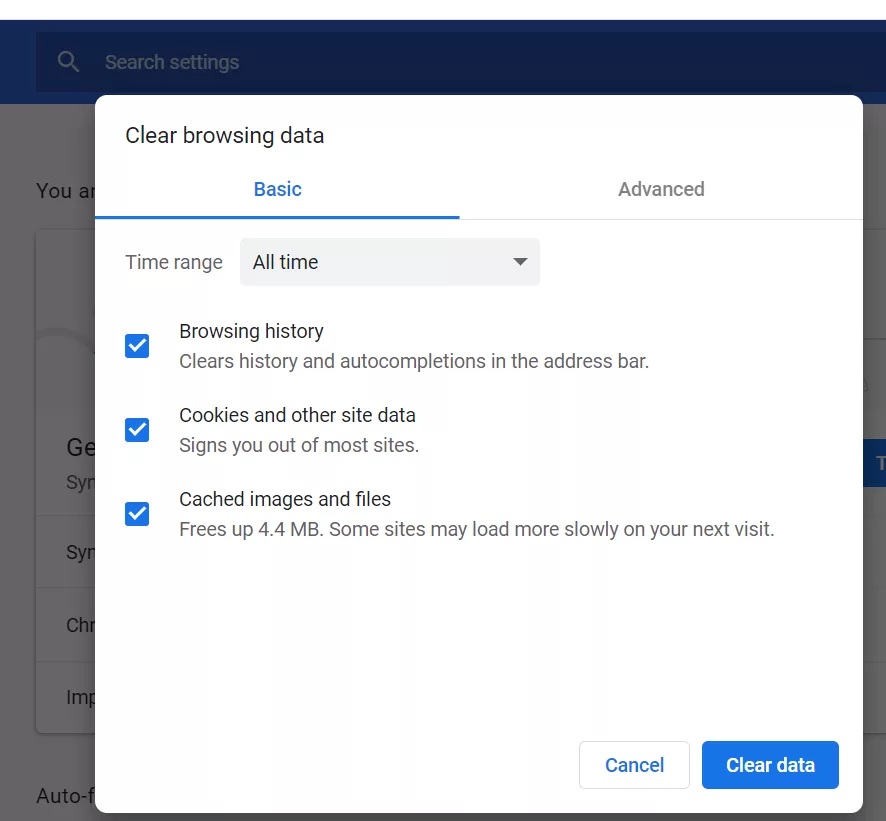
- It should be a corrupted or outdated cache, and cookies should be saved in your browser. So go to the three-dot Chrome > More Tools > Clear Browsing Data menu.
- Select “Cookies and other site data” and “Cached images and files” and then click Clear data.
That way, whatever wrong cache data came from a previous session should be deleted, and hence, it was solved.
Disable Browser Extensions
Extensions can interfere with how Chrome connects to websites.
- As a troubleshooting trick, all extensions could be disabled by clicking the menu icon (⋮) and proceeding to More Tools > Extensions.
- Toggle each of them off, then try reaccessing the site.
- If this solves the problem, enable extensions one by one again to trace which extension causes the problem and update or remove it.
Confirm Proxy and LAN settings
The wrong configuration settings in your network, be it on proxy settings, disallow connection.
- In the Windows OS, go to Control Panel > Internet Options > Connections tab > LAN settings, then remove the check mark that says to use a proxy server for your LAN.
- Click on Automatically detect settings. Then, apply, exit this window, and reopen the browser if this clears the error.
Flush DNS Cache
The DNS cache stores website IP addresses for faster loading, but a corrupted cache can lead to connection errors.
- To clear the DNS cache on Windows, open Command Prompt as an administrator and type: ipconfig /flushdns
- Press Enter, and the cache will be cleared. This ensures Chrome uses up-to-date DNS information for connecting to websites.
Flushing DNS Servers
Switching to a public DNS service like Google DNS or Cloudflare can help if your ISP’s DNS is unreliable. To configure DNS on Windows:
- Go to Control Panel > Network and Sharing Center > Change adapter settings.
- Right-click your active network, select Properties, and choose Internet Protocol Version 4 (IPv4).
- Enter Google’s DNS servers (8.8.8.8 and 8.8.4.4) or Cloudflare (1.1.1.1 and 1.0.0.1), save changes, and restart your connection.
Installation of Firewalls and Antivirus Settings
Sometimes, security software will block legitimate, sometimes completely harmless connections that misread them as threats.
- If that’s what you’re finding, try temporarily disabling the firewall or antivirus to test whether it clears up the issue, and re-access the website.
- If it clears up, you’ll have to go into security settings to make the appropriate changes to allow Chrome or the site at hand.
- Finally, once you have finished troubleshooting, turn the security software back on for continued protection.
Update Chrome and System
Outdated software can lead to compatibility issues with modern websites.
- Update Chrome by going to the menu (⋮) > Help > About Google Chrome, where updates will be installed automatically.
- Also, ensure your operating system is up to date, as some browser features rely on system-level updates.
Reset Chrome to Earlier Default Conditions
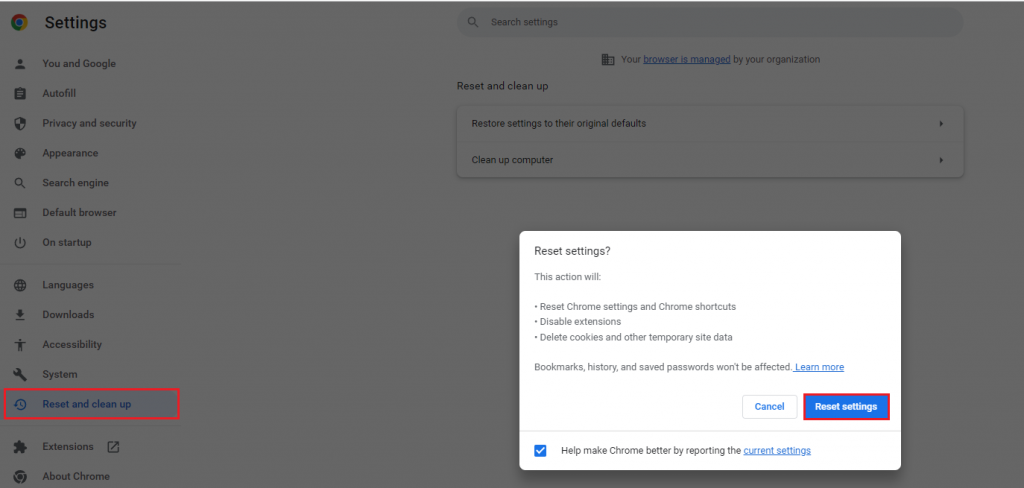
Sometimes, an issue may be caused by a misconfiguration, so resetting Chrome to its default settings will solve the problem.
- Click on the menu (⋮) > Settings > Reset settings > Restore settings to their original defaults.
- It will remove any custom configurations but keep your saved passwords and bookmarks.
Verify ISP or Network Restrictions
Some websites, at some point in time, will be blocked by your ISP or network administrator.
- So, when you think this might be so, use a VPN to get around this restriction and check whether connectivity works.
- If that doesn’t help, seek clarification and further assistance from your ISP.
Test in Incognito Mode or Another Browser
- Chrome’s Incognito mode disables extensions and uses default settings, which can help identify whether the issue is related to your browser.
- Alternatively, test the website on a different browser, like Firefox or Edge to confirm if the problem is exclusive to Chrome.
Keep your Website Secure
CheapSSLWeb offers budget-friendly SSL solutions without compromising security. Perfect for small businesses and large enterprises alike. Shop now for unbeatable deals!
Frequently Asked Questions
Is ERR_CONNECTION_REFUSED a virus?
No. It is a network or server issue, not malware or a virus.
Can DNS cause this error?
Yes. Incorrect DNS settings can prevent connections.
Does ERR_CONNECTION_REFUSED Affect Website SEO?
If your website shows this error frequently, then Search engines cannot crawl your site, and ultimately website ranking may drop. You can maintain the visibility and security by quick server-side fixes.
What are the Prevention Ways?
You can prevent Connection Refused Error by keeping your server monitored and using reliable hosting, configuring firewall rules carefully, regularly checking SSL setup, and monitoring uptime.
Other SSL Connection Errors
Fix Secure Connection Failed Error
Fix ERR_CONNECTION_TIMED_OUT Error
Fix ERR_TUNNEL_CONNECTION_FAILED
Resolve the ERR_CONNECTION_RESET Error
Fix SSL Connection Error On Android Devices
Fix “Your Connection is Not Private” Error

Explore More Knowledgebase Contents
Browse our library of SSL/TLS articles covering installation guides, troubleshooting, certificates, encryption, and website security.
