
Having an SSL certificate installed should give you peace of mind that the website won’t face any warning or error message, and it’ll work smoothly on browsers. However, it’s not always the same, and sometimes you do come across error messages. one of those pesky errors is the net::err_cert_date_invalid error message.
Nonetheless, if you’re facing this warning message of err_cert_date_invalid and are looking to resolve the issue, then you’re reading the right article.
Also Read: Fix NET:ERR_CERT_AUTHORITY_INVALID Error
What Does CERT DATE INVALID Error Mean?
NET::ERR_CERT_DATE_INVALID means your browser thinks the website’s SSL certificate is expired, not yet valid, or your device’s date/time is wrong. It’s a common HTTPS error in Chrome, Edge, and other Chromium-based browsers.
What are the Causes?
The NET::ERR_CERT_DATE_INVALID error is an SSL-related error that usually means your SSL connection isn’t private. Likewise, there’s no definite reason, and the browser can show this error message for many different reasons.
However, the error won’t prevent you from accessing the website, and you can overlook and click through the web page if you wish. But it’s recommended that you don’t ignore this error message but try resolving it.
Likewise, this Google Chrome NET::ERR_CERT_DATE_INVALID error isn’t unusual, and it’s easy to fix it. But sometimes, it can become a legitimate threat. For instance,
- You may face this error if there’s an issue with the user’s computer, like a particular setting on the computer, the internet connection, or antivirus software.
- The browser from which you’re accessing the website has an issue, for example, due to incompatibility with the installed SSL certificate or any browser setting.
- There can even be an issue with your installed SSL certificate itself. If that’s the case, then the SSL certificate will expire.
Steps to Fix ERR_CERT_DATE_INVALID Warning
This error message can arise due to many different reasons. Henceforth, we’ll guide you through all the available options to resolve this error message. We suggest you try one by one and know which works for you.
Refresh the Web Page
It’s the simplest one and doesn’t require any specific knowledge. You only need to refresh the web page showing the net::err_cert_date_invalid error message. Also, try closing your browser, restarting again, and navigating back to that page.
Sometimes, the page fails to load for some reasons without any specific reasons, and by refreshing the page, it can get resolved. For instance, the site may be getting its SSL renewed, and at that time, you tried visiting the site. However, if the issue continues, then look at another step.
Avoid Public Wi-Fi
If the above step doesn’t resolve the problem, check whether you use a public Wi-Fi connection. If you’re using, then we recommend avoiding using Public Wi-Fi as there’s the possibility your connection may not be private, and you may get this error message.
Instead, try using a hotspot on your mobile phone and try re-accessing the website.
However, if you want, you can even try using VPN. If the error is resolved, then the public Wi-Fi connection is why you faced this error. But, if it persists, try another step.
Check the Time & Date of Your System
Your browser may start showing an SSL-related error if the time and date of your computer system aren’t correct because the computer’s clock verifies the website’s installed cheap SSL certificate to know it’s not expired.
Henceforth, even if it’s set automatically, you should check whether the time and date are correct. Likewise, if the time and date are corrected or already correct, and you’re facing this error message, go ahead and move to the next solution.
Verify if the Installed SSL Certificate Is Expired
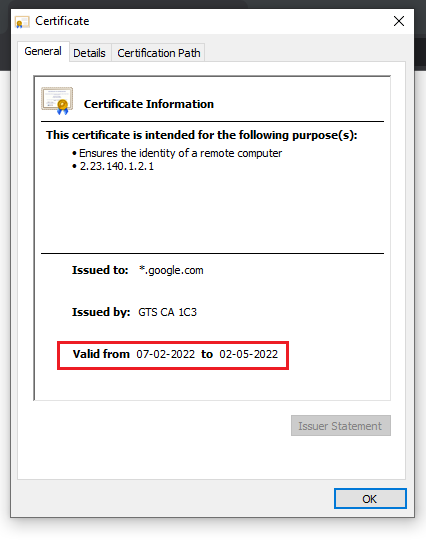
Sometimes, you may see this warning message due to an expired SSL certificate. Likewise, you can quickly verify it using Google Chrome.
First, click on the secure padlock, click Connection is secure > Certificate is valid, and the window will pop up. And you can verify it by checking the Valid from an option in the General tab:
Explore More on How to Check TLS/SSL Certificate Expiration Date?
Update Operating System or Web Browser
It’s recommended that you keep your OS (Operating System) and browsers updated with the latest version, as older ones may have become obsolete and may not be supported.
Likewise, some parts of SSL certificates may not work with older operating systems. Therefore, it’s recommended that you check once to see if the operating system and browsers have been updated. If not, then update it and check once. If the error message continues, then go through another mentioned solution.
Disable Installed Antivirus Software
Sometimes, due to installed antivirus software, errors like net::err_cert_date_invalid are displayed. Henceforth, to find out, it’s better to disable your antivirus software and open the website again. Make sure you force-refresh your website.
If the issue is resolved, you should update your antivirus software if any update is available. And, if the problem persists and the error doesn’t go away, then go through the next solution that we have.
Verify Browser Extensions
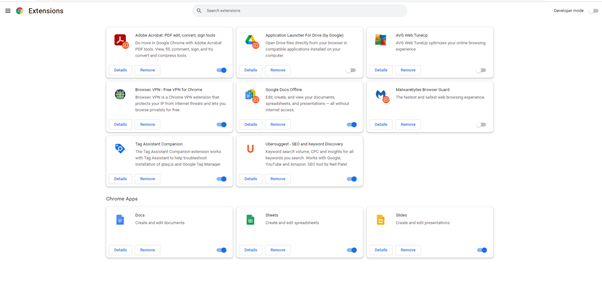
Sometimes, installed third-party browser extensions cause issues. Therefore, we suggest you go through each browser extension disable the installed extensions one by one, and reload the website. If the website opens successfully, then uninstall the last disabled extension.
To access installed browser extensions, click settings and then Extension, and the window will open like below:
Clear Cache & Cookies
Before you clear your cache, it’s recommended that you try opening the website using incognito mode. If that doesn’t work, then it’s recommended that you try clearing the browser cache and cookies. And, most probably, it will resolve the problem.
Read Also: How to Fix SSL Errors on iPhones?WordPress & NET::ERR_CERT_DATE_INVALID
If you’re getting this NET::ERR_CERT_DATE_INVALID error message in your WordPresswebsite and the above methods aren’t working, then you can try:
- Contact your hosting provider if they’ve installed an SSL certificate.
- Try reinstalling your SSL certificate if previously you installed it on your own.
- Ensure your website is HTTPS enabled.
- Ensure all the URLs are updated.
Wrapping Up
This error message isn’t hard to resolve, but it has multiple solutions. You should try simply reloading the website or checking the system’s date and time.

Explore More Knowledgebase Contents
Browse our library of SSL/TLS articles covering installation guides, troubleshooting, certificates, encryption, and website security.
