 (5 votes, average: 5.00 out of 5)
 Loading... (5 votes, average: 5.00 out of 5)Loading...
The “Deceptive Site Ahead” Warning is Google’s blacklist security feature to protect their users. Your website visitor encounters a red warning and thinks your website might be harmful due to malware, harmful programs, phishing, or other security risks.
This message can scare away potential users, damage your site’s reputation, and lead to loss of traffic and revenue.
Google’s Report shows that over 40,000 sites are blacklisted weekly. It is due to malware, phishing, or security vulnerabilities. In many cases, this warning results from a security breach or misconfiguration that can be fixed with the right steps.
The Deceptive Site Ahed warning is a warning message that is displayed in Google Chrome browser or other browsers that use the Google Security block listed feature most of the top browsers use it to protect users from cybercriminals.
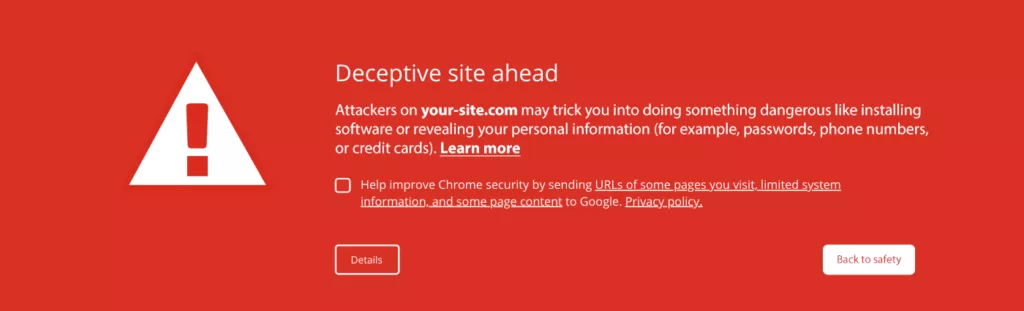
These features show a red warning (also called the red screen of death) to protect users from phishing, hacked sites, and sites containing illegal stuff and from downloading malware. It says a warning message to the user:
Attackers on the site you’re trying to visit might trick you into installing software or revealing things like your password, phone, or credit card number. Chrome strongly recommends going back to safety.
This red warning message decreases your brand credibility and affects your online business. It downgrades your website traffic, and online sales and visitors think this site is not trustworthy, they switch to alternative means of your competitor’s business.
These are the top reasons if your site is facing the Deceptive Site Ahead warning. We will go through each of them one by one:
If your site is infected by any kind of malware and used for malware delivery purposes (dropper), then your site is facing a Deceptive Site Ahead warning.
If your site is hacked and the hacker uses it for Phishing campaigns or other kinds of social engineering attacks, then your site gets a Deceptive Site Ahead warning.
If your website contains Deceptive and misleading content, you get this error. Cybercriminals hack the site and put this type of content on a good site.
If your website contains any type of file code, such as malware, viruses, backdoors and ransomware, Hackers generally use unflagged sites to deliver malware or potentially hack the website visitors. This will cause a Deceptive Site Ahead warning.
When the private key of the SSL certificate of your website gets compromised by a hacker, you will encounter this warning on your website.
The “Deceptive Site Ahead” warning affects websites in the following manner.
This warning causes financial loss to your online business. Your site users face red warring while visiting your site, which causes a bad user experience, and they switch to an alternative solution, i.e., your competitor’s business site.
Due to the warning, your website traffic significantly dropped. Because your customer is facing a red warning message while using your site. That’s why they go for an alternative solution.
Business owners spend months or years and even hire a professional guy to rank their websites on search engines like Google. But because of the Deceptive Site, Ahead Warning sites suffer from SEO Penalties and their rank gets downgraded, and in the worst-case scenario, it gets blacklisted.
The “Deceptive Site Ahead” shows a red warning in the website visitor browser with a message (“Attackers on the site you’re trying to visit might trick you into installing software…”) that can cause trust loss among your customers.
This is one of the worst-case scenarios where hackers or cybercriminals hack your site for malicious purposes and remove your admin access. Now, site owners don’t have their website access, and they face more difficulty in getting access back and fixing their website.
The “Deceptive Site Ahead” warning is also due to Deceptive or inappropriate content. The hacker or the bad actor can promote piracy, pornography, illegal drug and gun trade. That causes a serious Legal issue for the site owner.
This is the list of best ways to figure out why your website is facing a “Deceptive Site Ahead” warning just follow the method that best suits your case.
If you don’t know which one is best for your scenario, contact our team, and we will do a full website security audit for your business.
It is a free web service tool that allows website owners to monitor, maintain, and troubleshoot their site’s presence in Google Search results, helping them understand and improve how Google sees their site. Follow the below steps:
Check the number of pages indexed on Google, if too many new pages are indexed, like span pages, your website is hacked, and due to these spam pages, your site is getting this warning.
You can also use this Google dork “site:yourwebsite.com” to check all the index pages and then go to the tool and filter it by a specific time for a better result.
The log files are one of the best places to find evidence of security breaches or cyber-attacks. Download the log files from a web server or ssh them to the server and check the logs for anomaly patterns such as brute force attacks and login of admin accounts from unknown or blacklisted IPs.
If you integrate the Google Analytics tool into your website, then you can use it to identify the cause. It is a powerful tool that can help you detect anomalies that might indicate your website has been compromised or flagged as unsafe. Check the following patterns:
A bounce rate is the percentage of users who leave your site without interacting further. An unusually high bounce rate on certain pages may suggest Injected Malware or Backdoors.
If your organic search traffic drops suddenly, Google may have blacklisted your site due to malware, deceptive content, or SEO manipulation.
Check whether your site has any vulnerability or loophole through vulnerability scanners. There is no perfect all-in-one vulnerability scanner; each has its advantages and disadvantages.
Here is the list of top vulnerability scanners some of them are paid, and some are open source: Nessus, Nikto, zap, Burp Suite, Nuclei, Nmap and SqlMap.
The first thing to do a full security scan of your website. You have to do a security scan of the website and check every file, folder, database, and code base. Because the malware and backdoor could be anywhere, or it could have multiple copies, or the hacker created a rogue account for the backdoor purposes.
These are the steps to scan your website:
To check every file, folder and entry in the database of your website for malware, backdoors and security issues, you have to do a deep scan. Many tools and plugins do this. These vendors have plugins and software for it you have to install it on the web app or the server.
However, the licenses of this tool are very costly, and these tools use signature-based scanning, so there is a perfect tool that is ranked as best.
Here are top tools: Netsparker (Invicti), Acunetix, Detectify, Snyk Code, SonarQube, OpenVAS, and Burp Suite Pro
In manual scan, you have to manually scan for the Malware and backdoor in your website. If you have no security background, it is very difficult to find and remove it.
Some of the things while doing a manual scan are checking for vulnerable functions, checking the file and folder permission, checking if any new admin account has been created or checking the malicious code in the database, and if there is any obfuscated string, these are the some of top Indictor of compromise.
The manual scan is always a chance of human error if it is not done by professionals.
These are some top tools that help you in Manual scanning: Grep, YARA, ZAP, Nessus and Burp suite.
The “Deceptive Site Ahead” warning also occurs due to inappropriate and illegal content. You have to review each page of the website and check for if any page contains harmful or misleading posts such as fake news, betting, pornography, drugs and guns.
You have to remove this page if you find it on your website. Hackers hack legitimate sites and engage in this kind of illegal activity.
Use Secure Sockets Layer (SSL) to protect from Main In the Middle attack (MITM) and secure your website from Hackers. It is a cryptographic protocol designed to secure communication between browsers and servers.
Websites with an SSL certificate use Hypertext Transfer Protocol Secure (HTTPS) to transmit data securely. This is denoted by “https://” at the beginning of the URL and a padlock symbol in the address bar.
Besides making SSL one of the ranking factors, it also flags websites that haven’t moved to HTTPS with the deceptive site warning. Contact us to purchase an SSL certificate for your website.
The outdated web technology contains a vulnerability. Hackers use this vulnerability to exploit websites. So always update your web technology such as web server, plugins, theme, framework, library and themes. Don’t use the technology whose developer stopped the project, so you will not get any future updates.
Some hosting providers have a history of malware infections. Ensure your provider has strong security measures. Always purchase hosting services from a reputed company. If the hosting provider is not secure, then your website is always at risk.
Check if your site has any unnecessary services that are not running. If you are not using any services, close it because it increases the attack surface area for the hackers. If you don’t run a specific Service or Port in your hosting but it is running, there is a very high chance that it is a kind of backdoor for the hackers.
Use tools such as Nmap to check vulnerabilities, Misconfigurations and Open ports in your website and Close any unnecessary ports or services.
Run this Nmap command to scan your site “nmap -p- -sC -sV -A yourwebsite.com”
Once you figure out the reason that causes the “Deceptive Site Ahead” warning on your website, remove all the harmful files and content by following the above approach.
You have to do some additional steps that protect your site in future and request Google to review your website so the warning gets removed.
Add a Web Application Firewall (WAF) that protects your website from this kind of attack in future. The WAF blocks all the malicious attacks and attacker IPs.
Once you clean your site, it’s important to change your old password, SSH key and database credentials. Follow password rotation policy for future use cases.
Even after removing the malware, the Deceptive Site Ahead warning may still appear because Google has not yet rescanned your website. While they will eventually do so, the timeline is uncertain, so you must take action to have the warning removed. Each request is manually reviewed by Google’s team.
The “Deceptive Site Ahead” warning can be a major setback for your website, affecting your traffic, reputation, and revenue. It is essential to identify the cause of the warning, remove malicious content, and take proactive steps to prevent future security breaches.
By performing a full security audit, reviewing your site content, securing your website with our Wide Range of SSL Certificate, and ensuring regular updates, you can protect your site from cyber threats and regain user trust.
Take action today to secure your online presence and prevent security warnings from harming your business!
