
 (23 votes, average: 4.70 out of 5)
 Loading... (23 votes, average: 4.70 out of 5)Loading...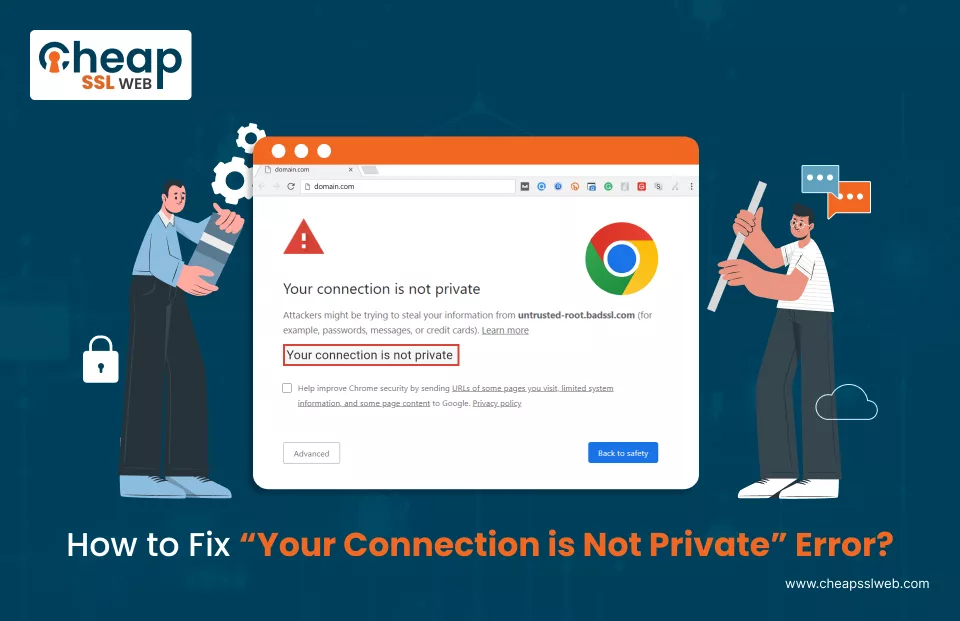
While browsing your favorite site on the Internet, have you ever been greeted by the “Your Connection is Not Private” error? If the answer to this question is “Yes,” then there is no need to tell you how frustrating and troublesome this error can be.
Advancing to the site even after seeing the Your Connection is Not Private warning message is quite risky as all the data that’s being transmitted between the server and the client (browser in this case) is neither encrypted nor secured. Hence, there is always a chance that a malicious actor can intercept the data.
If you are one of those individuals who are facing the Your Connection is Not Private error message and want to get rid of it, then you have landed on the right article.
In this piece, we will explore the error in discussion in great detail, as in – What exactly is the Your Connection is Not Private error? What are the reasons because of which the error pops up in the first place? And the most important part – How to fix the Your Connection is Not Private error? Hence, read the piece till the end.
The Your Connection is Not Private error is a warning message that pops up when the browser (that you are using to browse the site) isn’t able to establish a secure and encrypted connection with the website that you were trying to access. In simple terms, getting greeted by the Your Connection is Not Private warning message means that the website’s SSL cert has expired, can’t be authenticated, or is missing entirely.
A secure connection isn’t established because the browser is unable to confirm whether the site has a valid Secure Socket Layer (SSL) certificate or not.
The main reason because of which you are getting greeted by the error in discussion is that the web browser is unable to establish a secure and encrypted connection with the site.
Apart from this, there are other reasons as well that can give rise to this warning message, such as:
Ten (10) methods or techniques can be employed to fix the Your Connection is Not Private error message at your end. Start with the first method listed below, and if that method does not fix the issue, move on to the subsequent (next) one.
Method 1: – Refresh the page
Method 2: – Connect to a private network (if using an open network)
Method 3: – Access the site in incognito mode
Method 4: – Clear cache data and history
Method 5: – Temporarily disable security software
Method 6: – Temporarily disable browser extensions
Method 7: – Clear the SSL State
Method 8: – Change Your Domain Name System (DNS) Server
Method 9: – Update the Operating System
Method 10: – Restart the system
Let’s explore each method in detail.
The first thing that you should try to get rid of the Your Connection is Not Private error message is to refresh the web page. Doing so will prompt the web browser to re-establish a secure and encrypted connection as well as reload the website’s SSL cert information.
To refresh the page, you can either press the F5 key on your keyboard or simply click the reload this page icon placed on the left of the URL bar. Once done, re-access the site and verify whether the error still persists or not.
Ensure that the network that you are connected to is not an open network (public Wi-Fi), as it’s not stable and can create connection issues, which in turn can give rise to the Your Connection is Not Private error.
Hence, if you are connected to one, disconnect it. Connect to a private network and re-access the site.
Using incognito mode in the browser can sometimes bypass an SSL connection error like the one we are currently discussing. This is so because it does not use the same cache or cookies.
Follow the steps mentioned below to open incognito mode in the Google Chrome browser:
Cached data may contain outdated security configurations and these outdated configurations can give rise to “n” number of issues, including the Your Connection is Not Private error. Hence, clear it and try re-accessing the site.
Follow the steps mentioned below to clear cache data and history in Chrome browser:
Security software, such as antivirus and firewalls, may mistakenly flag a site’s SSL certificate as untrustworthy or even block specific aspects of web communication. Hence, temporarily disable any security software if in use and verify whether the error persists or not.
Follow the steps mentioned below to temporarily turn offthe antivirus:
Follow the steps mentioned below to temporarily turn off firewall:
Specific extensions can interfere with the browser and cause the Your Connection is Not Private error. Hence, momentarily turn off or disable each extension individually in order to pinpoint the one causing the issue.
Follow the steps mentioned below to temporarily turn off browser (Chrome) extensions individually:
Clearing the browser’s SSL state can fix the Your Connection is Not Private warning message. Doing so will clear cached SSL certs that are either expired or invalid.
Apart from this, it will also remove any corrupted SSL configurations in the browser and will prompt the browser to re-validate the site’s security certificate.
Follow the steps mentioned below to clear the browser’s SSL state:
Altering the Domain Name System can also fix the Your Connection is Not Private warning message by changing the path through which the web browser retrieves website data.
Switching to another DNS server (for example, Google’s Public DNS) can enable more precise and up-to-date retrieval of the site’s SSL cert.
Follow the steps mentioned below to alter the DNS server name:
Sometimes, utilizing an older operating system version could be the reason because of which you are being greeted by the Your Connection is Not Private warning message.
Older OS versions may not support new SSL protocols and lead to a mismatch, which in turn gives rise to this error. Apart from that, the latest OS version also consists of patches for known bugs and improvements in how SSL certs are handled. Hence, update the OS version and verify whether the error persists or not.
Follow the steps mentioned below to update the operating system:
If you have tried all the methods listed above and the error still exists, restart the machine (system) and the router. Doing so will clear the temporary cache or any hiccup, if there is any.
Follow the steps mentioned below to restart the system:
By following various methods, you will get rid of this SSL error and enjoy a smooth web browsing experience. Don’t forget to Buy SSL certificate for ongoing web security.
